
Getting started · Standard
Using your Shopping List.
Use Shopping List as a checklist when you go out to buy ingredients. CocktailScan does not sell products or place orders—you purchase ingredients at your chosen stores, then add them to your bar inventory. We’ll continue with Vermouth (Dry) from the previous tutorial.
Step 1
Open your Shopping List
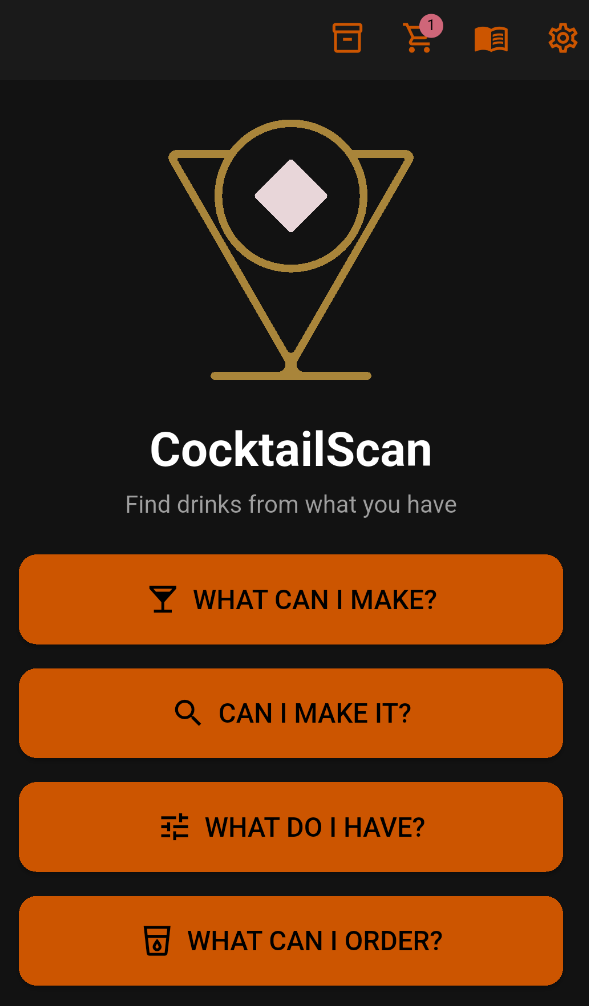
Tap the shopping cart icon at the top. You can access Shopping List from almost any screen.
The badge shows how many ingredients are on your list. Here, 1 represents Vermouth (Dry).
Step 2
Add more ingredients
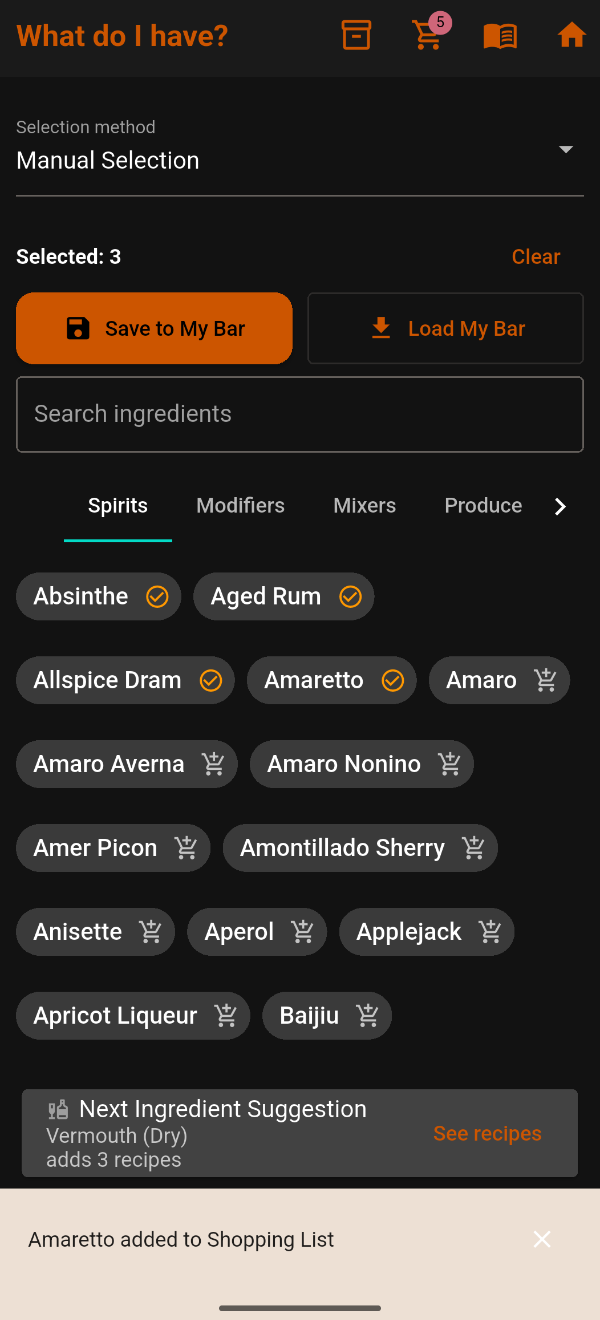
We’ve added Absinthe, Aged Rum, Allspice Dram, and Amaretto alongside Vermouth (Dry).
Tap the cart beside an ingredient to add it. An orange circled check mark confirms it is on the list.
The badge shows 5, while Selected: 3 is unchanged. Planned purchases are separate from ingredients you already have.
Step 3
Review the list and top icons

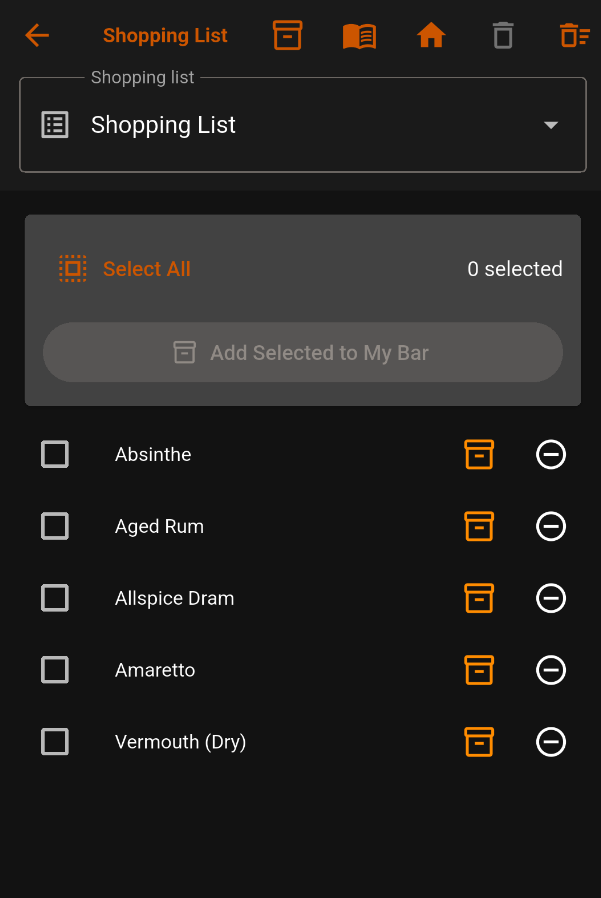
- Back arrow: Return to the previous screen.
- My Bar — box: Open saved inventory.
- Library — book: Browse recipes and reference information.
- Home — house: Return to the main menu.
- Delete Shopping List — trash can: Deletes an entire list in Premium, which supports multiple lists. This icon currently also appears in Standard.
- Clear Shopping List — far-right trash-and-list: Removes all ingredients but keeps the list itself.
Checkboxes select purchases. Select All selects every item. Add Selected to My Bar becomes active when something is selected.
Step 4
Clear a list when needed
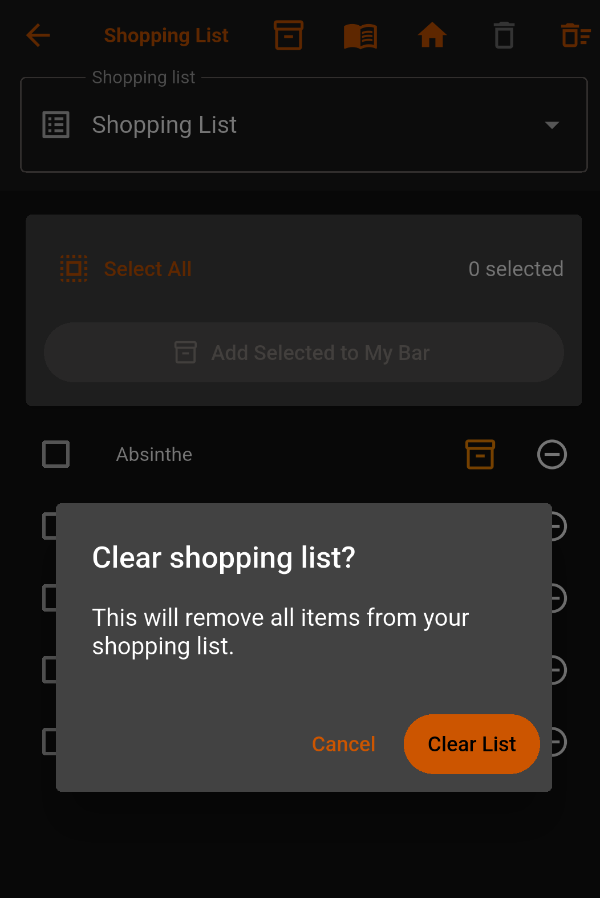
The far-right icon asks you to confirm clearing all items.
Clear List removes the ingredients but keeps the list. Cancel leaves everything unchanged.
For this walkthrough, tap Cancel to keep our five ingredients.
Step 5
Add one purchased ingredient

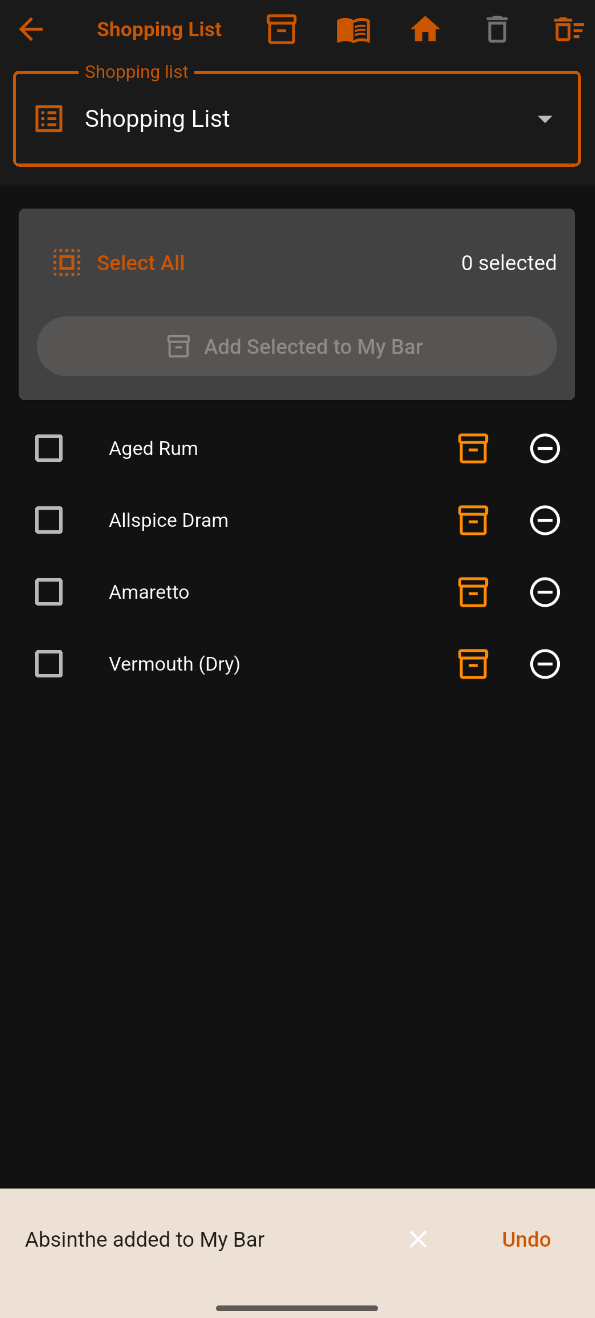
After purchasing Absinthe, tap the orange box beside its name.
Absinthe is added to My Bar and removed from Shopping List. The confirmation says “Absinthe added to My Bar.”
Tap Undo if you added it by mistake.
Step 6
Check off several purchases
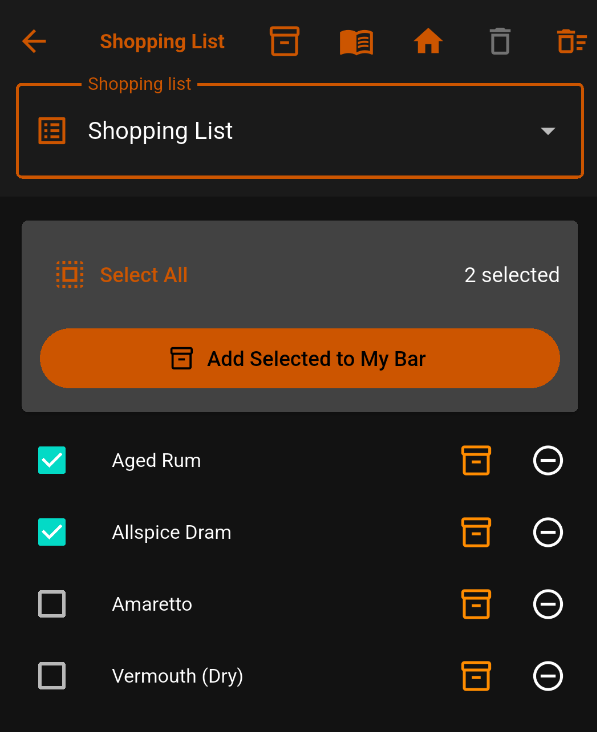
As you shop, tap the checkbox beside each ingredient you purchase.
Here, Aged Rum and Allspice Dram are checked. The count shows 2 selected.
Tap Add Selected to My Bar.
Step 7
Confirm adding your purchases
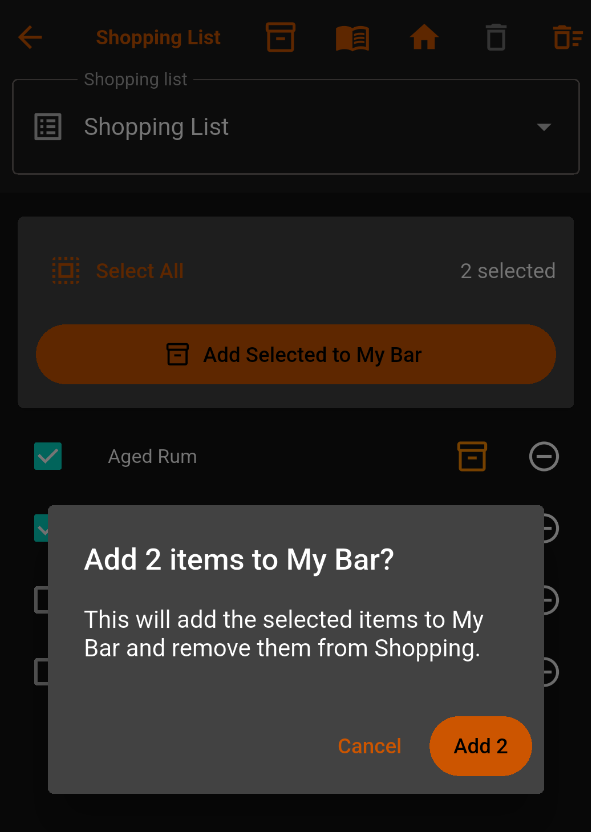
The confirmation explains that selected ingredients will be added to My Bar and removed from Shopping.
Tap Add 2 to confirm or Cancel to leave everything unchanged.
Unchecked items remain on the list.
Step 8
Check your updated list
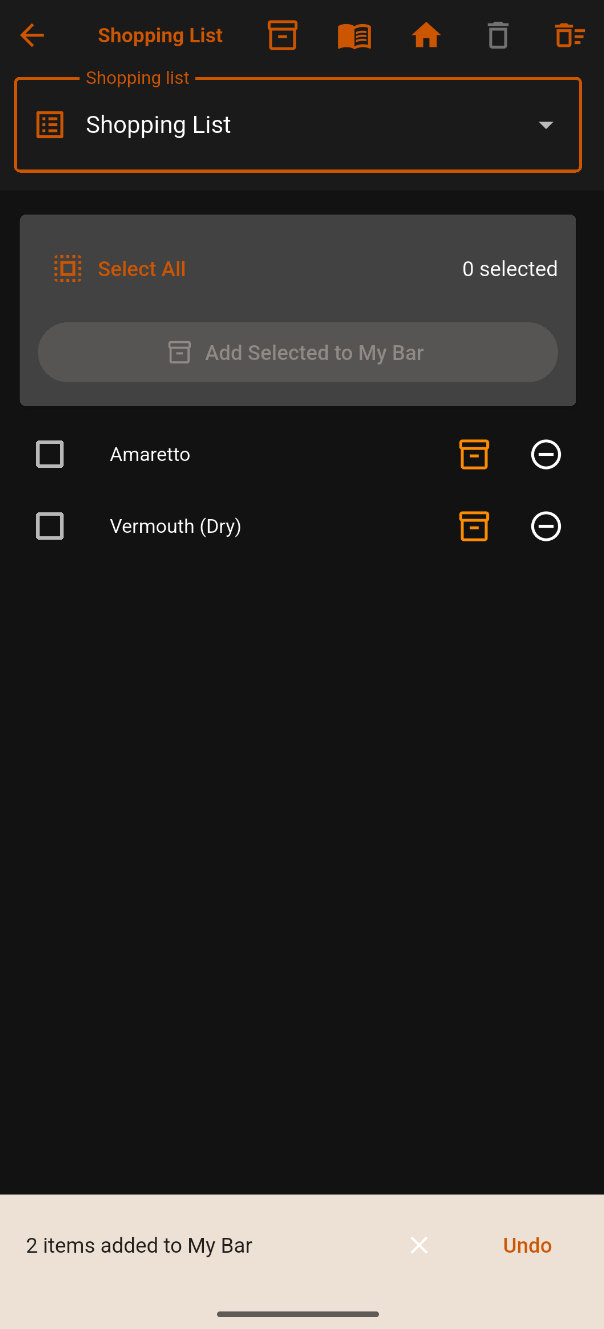
“2 items added to My Bar” confirms Aged Rum and Allspice Dram were moved into your inventory.
Amaretto and Vermouth (Dry) remain. The selection count returns to zero.
Tap Undo if you moved items by mistake.
Step 9
Remove an item you no longer need
Tap the circled minus beside an ingredient to remove it from Shopping List without adding it to My Bar.
Here, we removed Amaretto, leaving Vermouth (Dry). Currently, removal happens immediately without confirmation.
Step 10
Select your final purchase
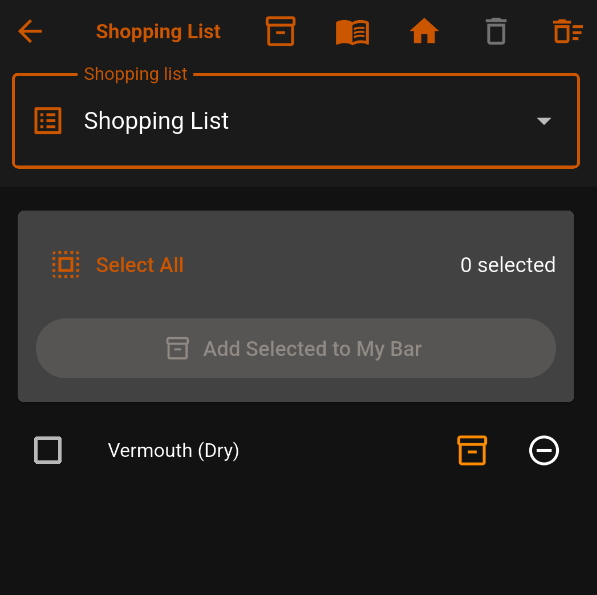
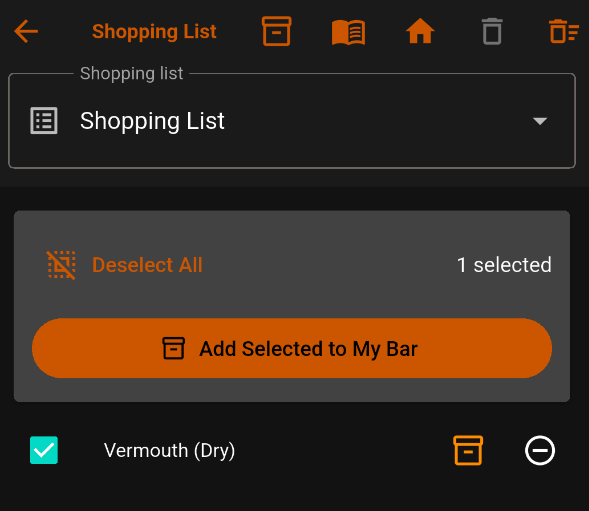
After acquiring Vermouth (Dry), tap Select All. It is the only remaining item, so the count shows 1 selected.
The control changes to Deselect All, which clears the selection if needed.
Tap Add Selected to My Bar.
Step 11
Confirm your final purchase
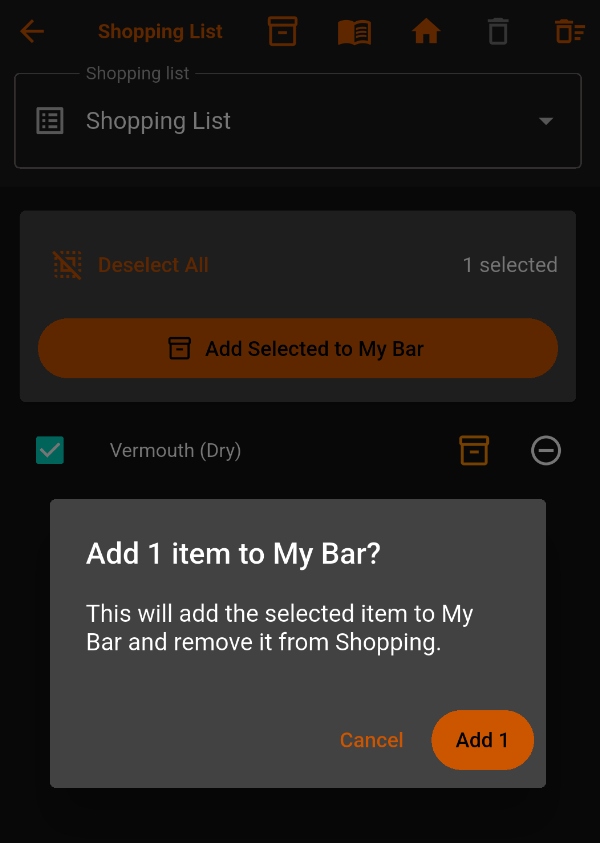
Tap Add 1 to add Vermouth (Dry) to My Bar and remove it from Shopping List, leaving the list empty.
Cancel leaves it on the list.
Step 12
Review your purchases in My Bar
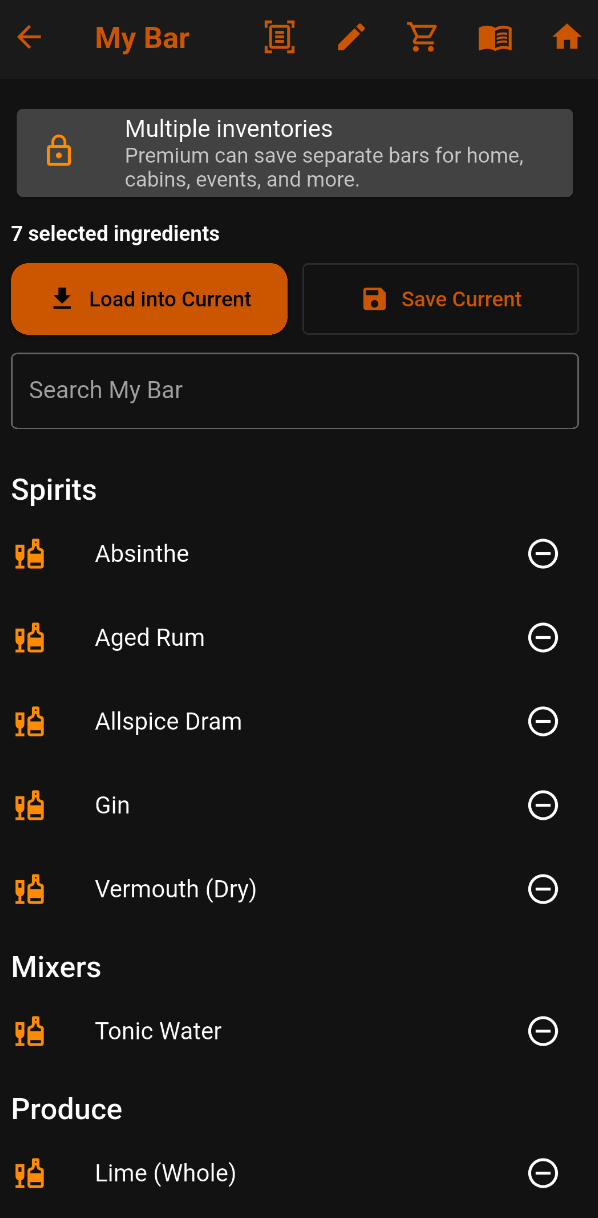
Tap the box icon to open My Bar.
Your saved inventory now contains seven ingredients:
- Spirits: Absinthe, Aged Rum, Allspice Dram, Gin, and Vermouth (Dry).
- Mixers: Tonic Water.
- Produce: Lime (Whole).
These are the original three ingredients plus four purchases. Amaretto was removed rather than purchased.
Search My Bar finds saved ingredients. Load into Current brings this inventory into your current selection for finding drinks.
Multiple inventories are a Premium feature for separate bars at home, cabins, events, and more.
Keep your bar current
From shopping plans to drink possibilities
Add missing ingredients to Shopping List, check off your purchases, and move them into My Bar. Leave anything you still need on the list.
Return to What Do I Have? and tap Load My Bar to explore what your updated inventory makes possible.