
My Bar
Review and manage your saved inventory.
Getting started · Standard
Turn the ingredients you have into drink ideas. Learn to select ingredients, explore a recipe, and save your bar inventory—with a Gin & Tonic as our example.
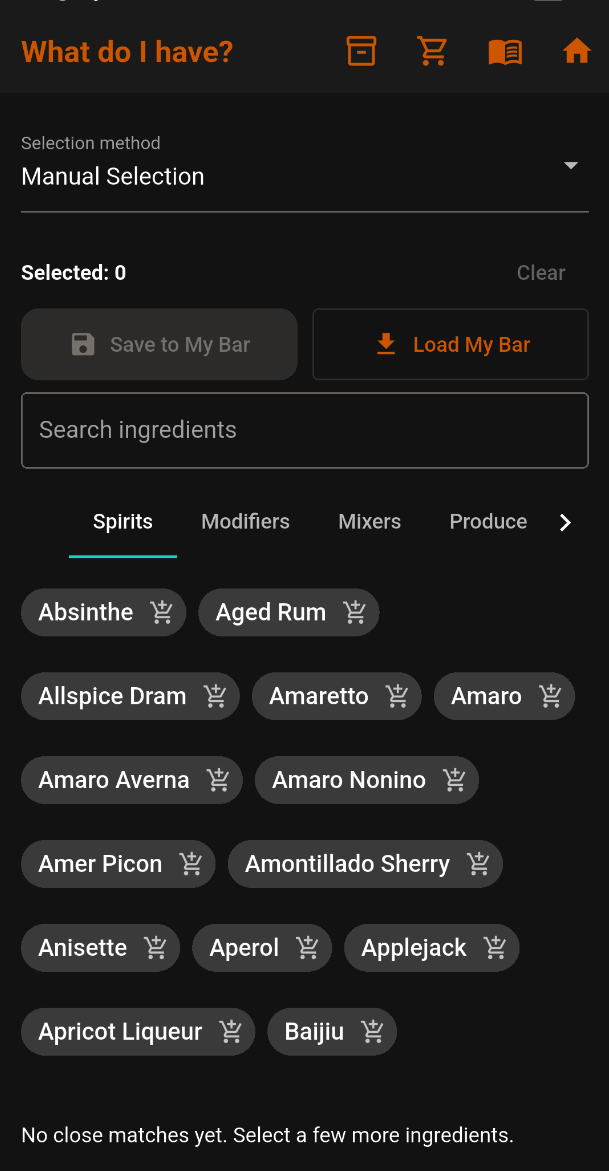
Know the screen

From left to right:
Review and manage your saved inventory.
Review ingredients you plan to buy.
Browse recipes and reference information.
Return to the main menu.
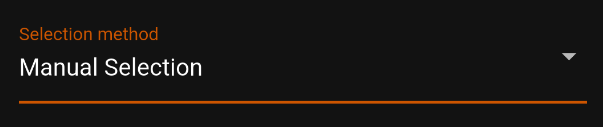
Tap Selection method to choose how you select your ingredients.
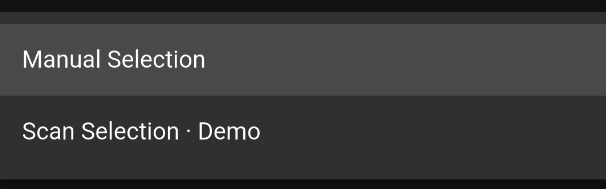
For this tutorial, choose Manual Selection.

Selected shows how many ingredients are in your current selection. Selected: 0 means nothing is selected yet.
Clear removes all ingredients from the current selection. It is inactive when nothing is selected.
Step 1
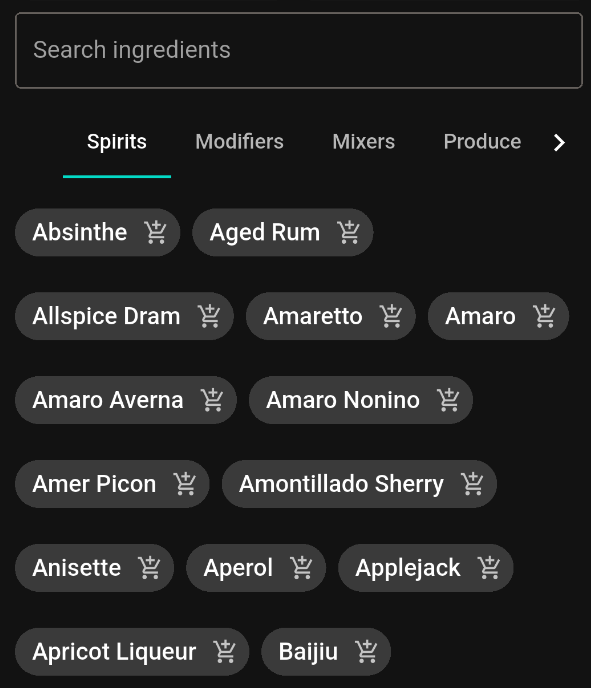
You can select ingredients in two ways:
Tap the ingredient name to select something you have. The cart icon beside it is for your Shopping List.
Step 2
Let’s select ingredients for a Gin & Tonic.
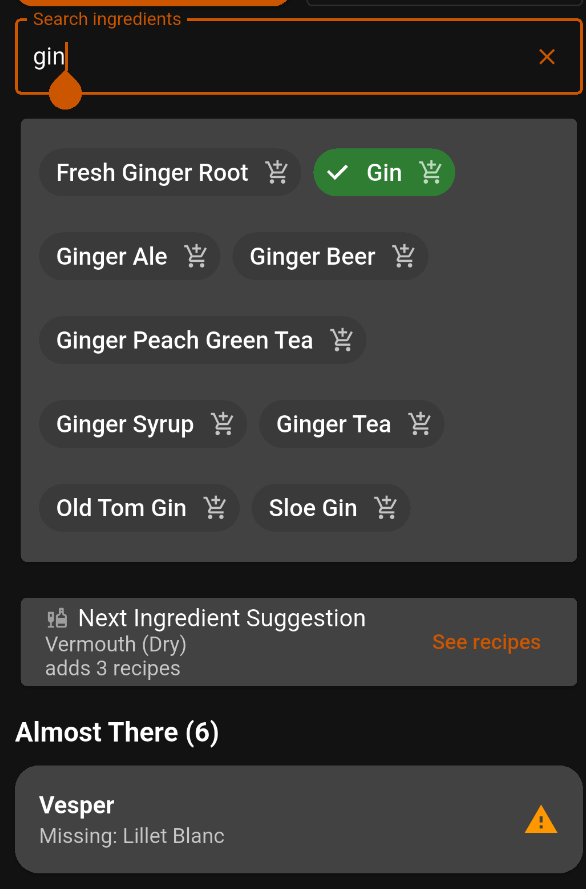
Type gin into the search field, then tap Gin. Its button turns green and shows a check mark.
Almost There suggestions show cocktails that need additional ingredients, with missing items listed beneath each drink.
Step 3
Tap the X on the right side of the search field to clear gin.
This clears the search text. Gin stays selected.

Step 4
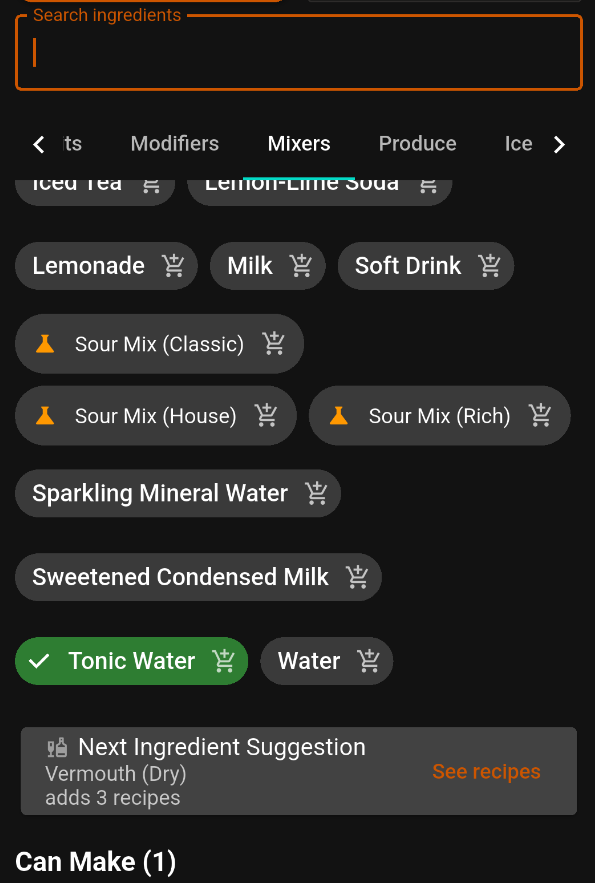
Tap the Mixers tab, scroll down to Tonic Water, and tap its name. It turns green and shows a check mark.
Can Make (1) now appears below the ingredients. Scroll down to see the drink.
Step 5
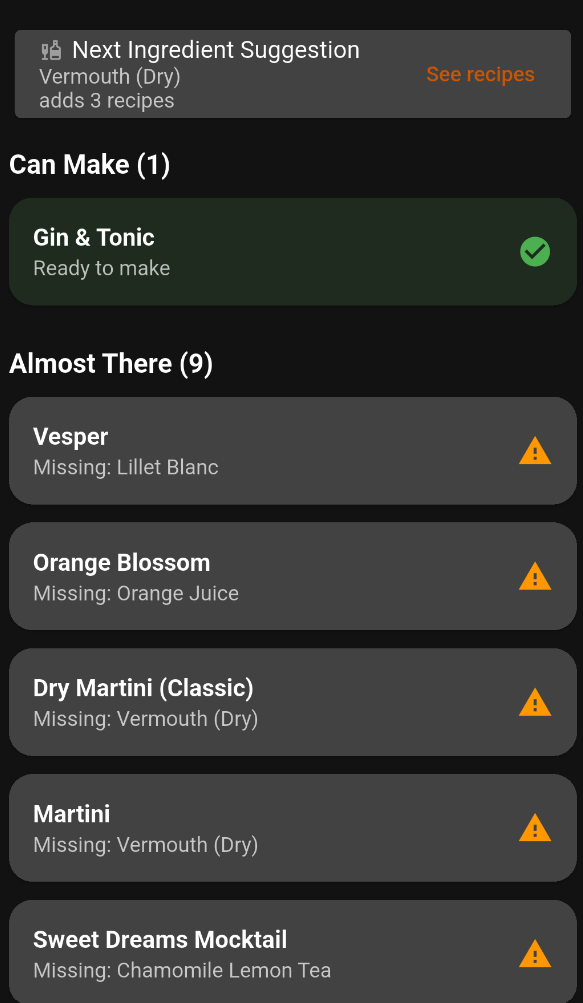
Gin & Tonic appears under Can Make, marked Ready to make.
CocktailScan does not require optional garnishes when deciding whether a drink is makeable. Gin and Tonic Water are enough for this match, but we’ll also select Lime to finish our drink.
Next Ingredient Suggestion recommends Vermouth (Dry). Adding it to our current selection would unlock three more recipes. Tap See recipes to explore them.
Almost There lists other cocktails and their missing ingredients.
Step 6
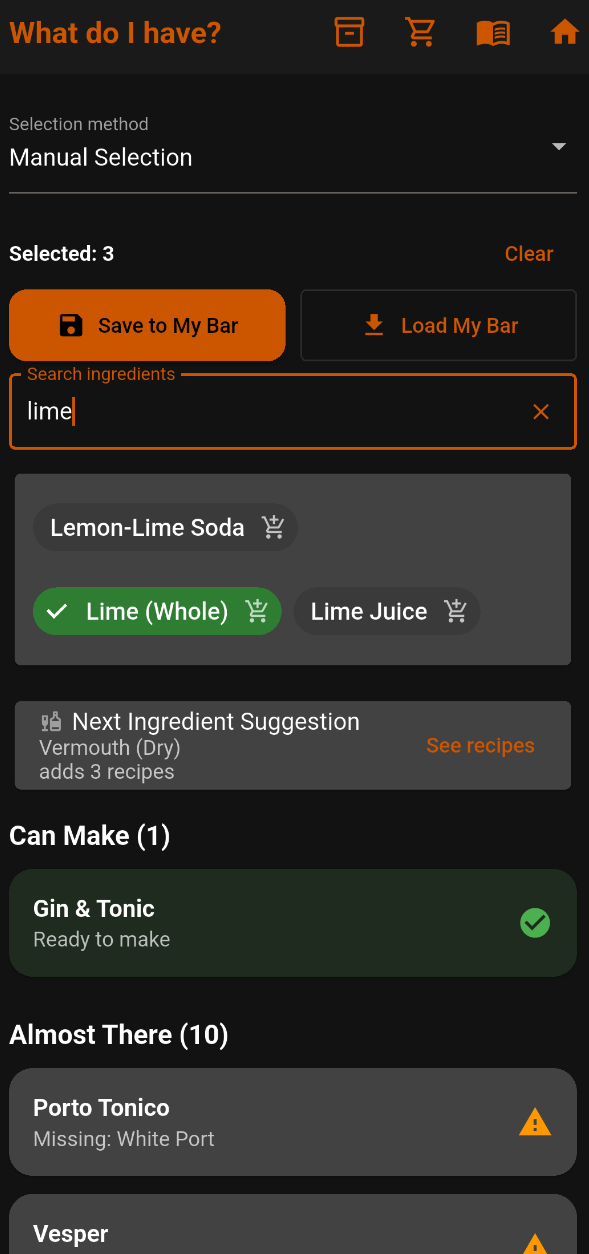
Type lime into Search ingredients, then tap Lime (Whole). Its button turns green and displays a check mark.
Choose Lime (Whole) for the garnish rather than Lime Juice.
Selected: 3 confirms Gin, Tonic Water, and Lime (Whole) are selected. Gin & Tonic remains ready to make.
Step 7
Tap the Gin & Tonic recipe card under Can Make.
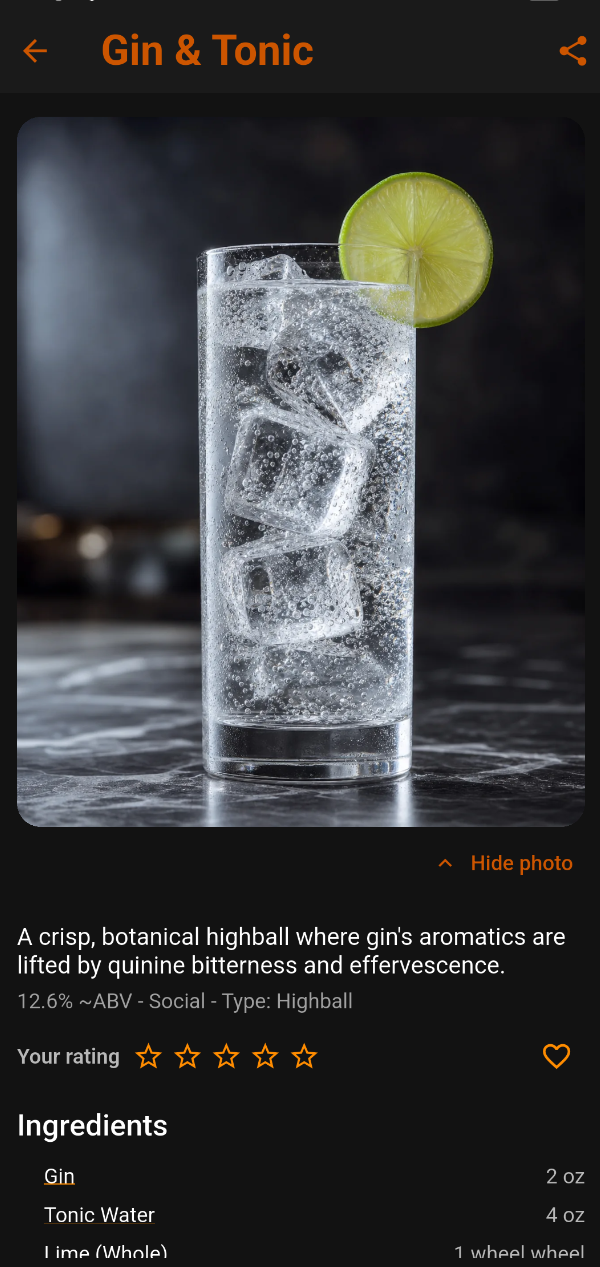
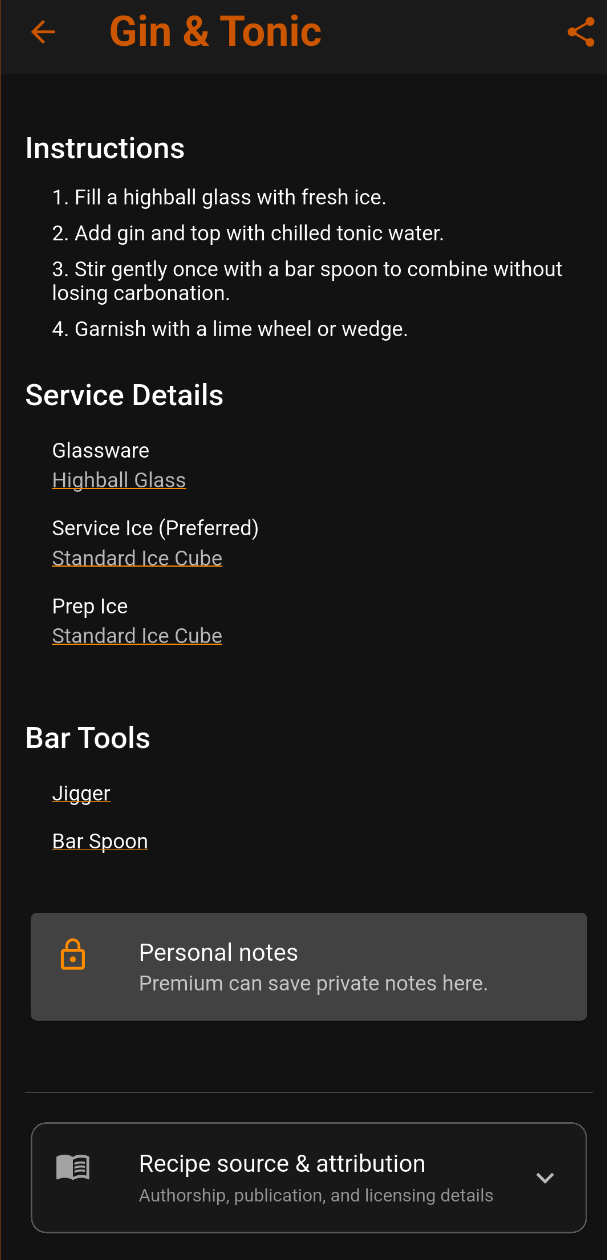
You’ll see the drink’s photo, description, and ingredient measurements. Scroll down for the preparation instructions.
Step 8
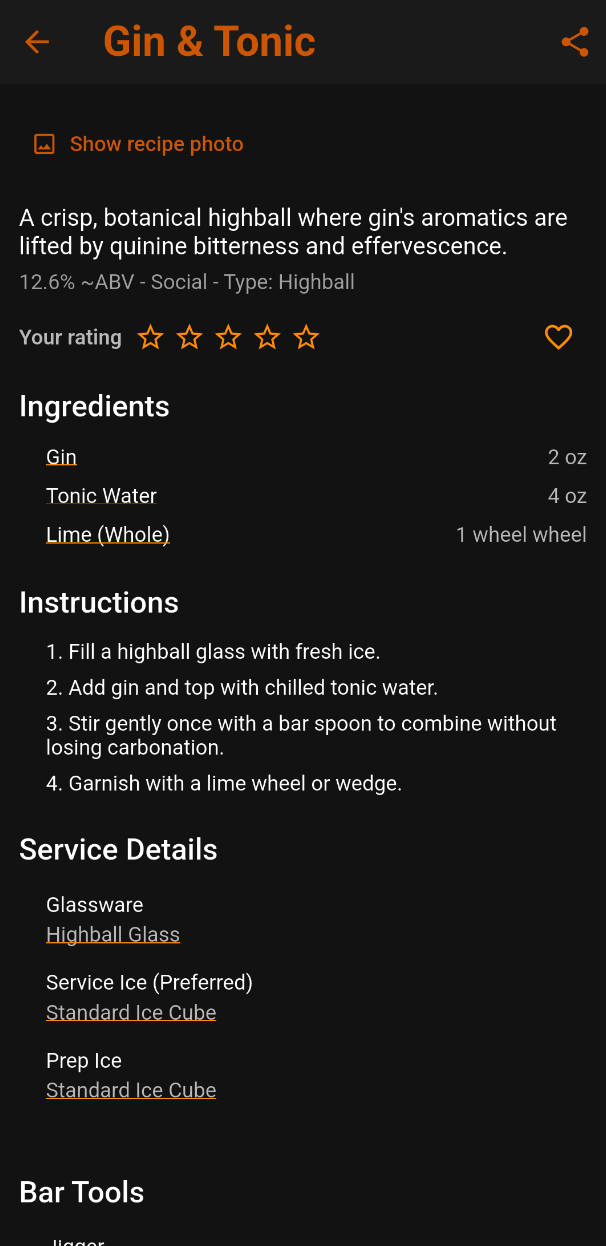
Tap Hide photo to make the recipe details easier to see. More ingredients, instructions, glassware, ice, and tools fit on the screen.
Tap Show recipe photo to see the image again.
If you prefer recipes without photos, change Settings to hide recipe images by default.
Step 9
Step 10
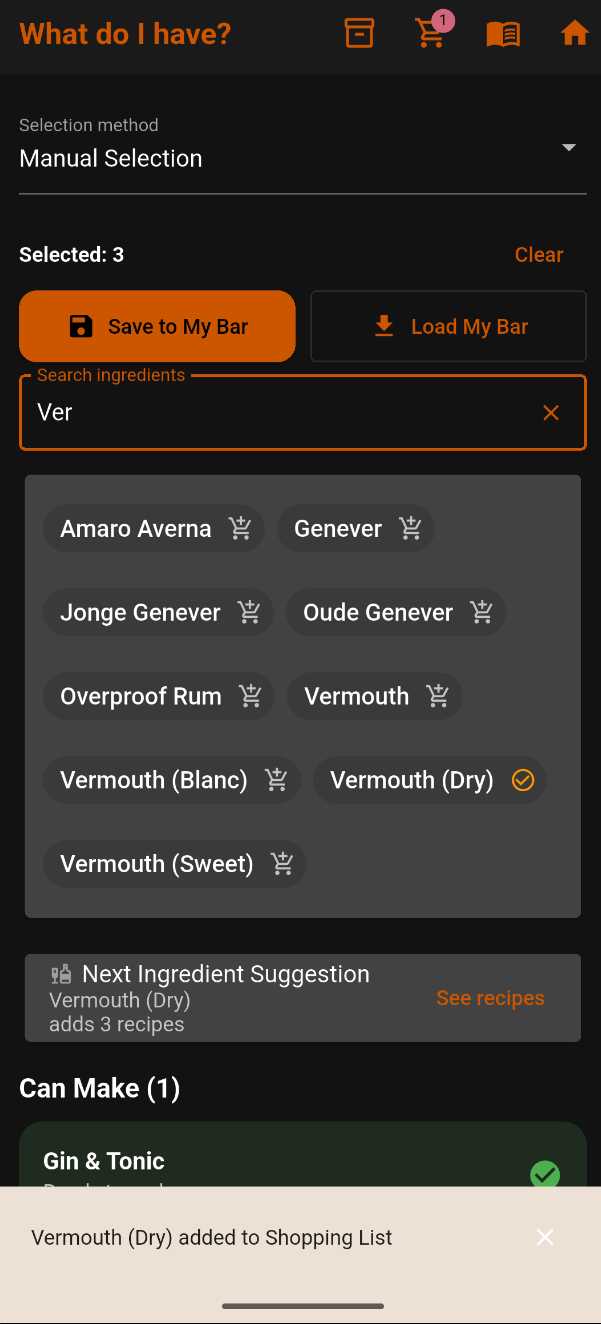
Tap the back arrow to return to What Do I Have? Clear the previous search with X, then type ver.
Tap the cart icon beside Vermouth (Dry).
A confirmation appears, the top Shopping List icon shows 1, and the ingredient’s cart changes to an orange circled check mark.
Selected: 3 stays unchanged. Shopping List tracks what you plan to buy; Vermouth (Dry) is not yet one of your available ingredients.
Step 11
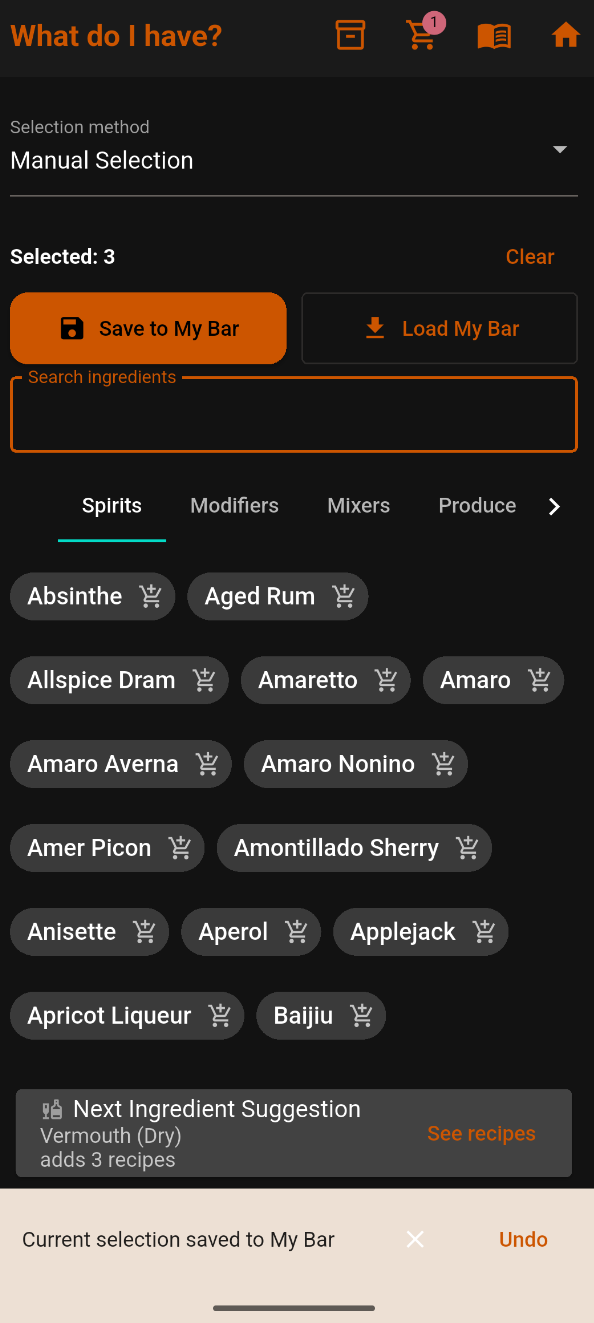
Tap Save to My Bar to save Gin, Tonic Water, and Lime (Whole).
“Current selection saved to My Bar” confirms the save. Tap Undo if you saved by mistake.
Vermouth (Dry) remains on Shopping List and is not part of the three ingredients saved to My Bar.
Use Load My Bar to bring your saved inventory into the current selection.
Make it your own
Gin & Tonic was just our example. CocktailScan becomes more useful when you select everything you have available.
Look through your cabinets, refrigerator, and produce. Use search or category tabs to select your spirits, liqueurs, mixers, syrups, fruit, and other ingredients.
As you add ingredients, explore Can Make and Almost There to discover more drink possibilities.
When you’re finished, tap Save to My Bar to save your inventory for next time.