
Getting started · Standard
Reviewing My Bar.
Keep your saved inventory useful and up to date. Tap the box icon to open My Bar, review your ingredients, and use them to find drinks.
Your saved ingredient inventory
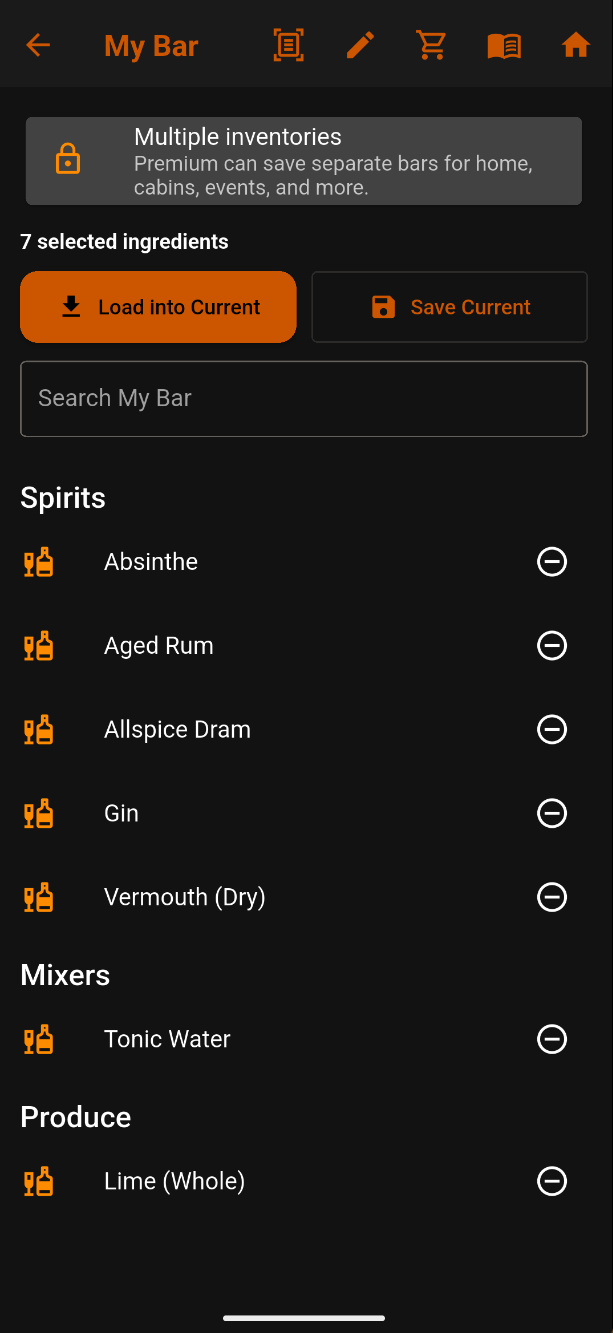
Following our shopping walkthrough, My Bar contains seven ingredients, grouped by category.
- Spirits: Absinthe, Aged Rum, Allspice Dram, Gin, and Vermouth (Dry).
- Mixers: Tonic Water.
- Produce: Lime (Whole).
Use Search My Bar to find a saved ingredient by name. This is especially useful with a large inventory.
Tap the circled minus beside an ingredient to remove it when you no longer have it.
The Multiple inventories notice describes a Premium feature for separate bars at home, cabins, events, and other locations. Standard keeps one inventory.
The top-row icons

- Back arrow: Go back one screen.
- Scan: Take or import a photo to explore ingredient scanning. Currently in demo mode; the planned scanning feature will be available in Standard.
- Pen: Rename your inventory.
- Shopping cart: Open Shopping List.
- Open book: Open the Library.
- Home: Return to the main menu.
Rename your inventory
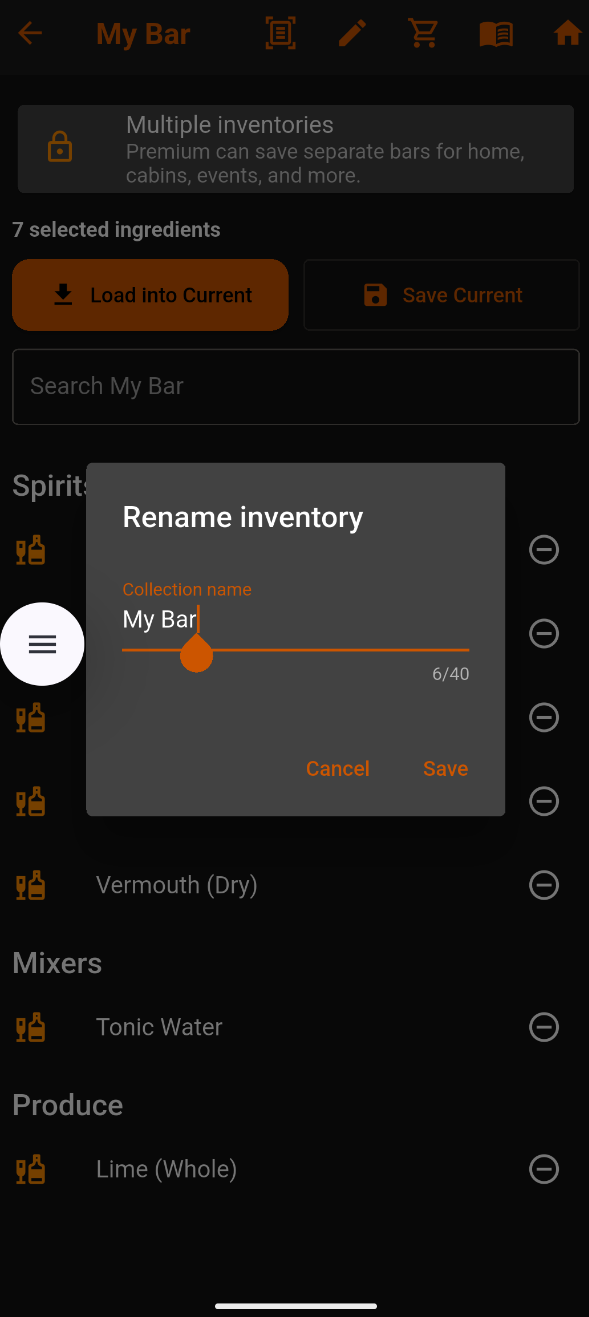
Tap the pen icon, enter your preferred name, then tap Save.
Cancel keeps the existing name.
You can rename your inventory in Standard. Keeping multiple separate inventories is a Premium feature.
Scan My Bar — Demo
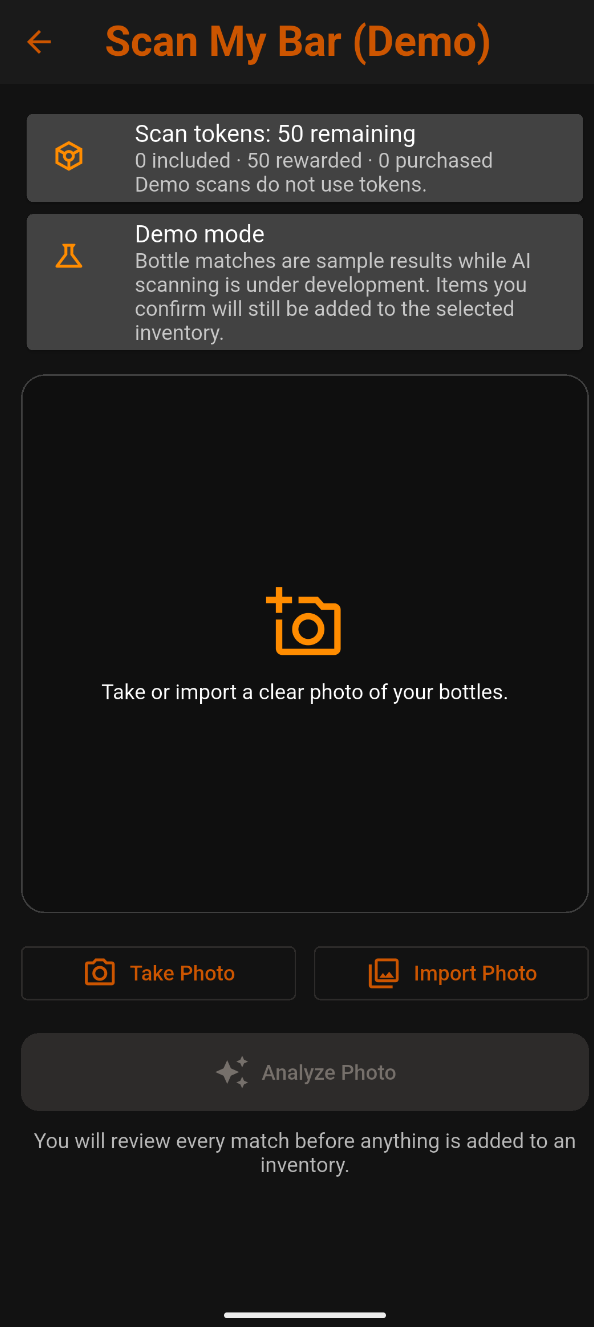
Tap the scan icon, then choose Take Photo or Import Photo to explore the workflow.
Currently, bottle matches are sample results while AI scanning is under development. Demo scans do not use scan tokens.
You review every match before anything is added. Ingredients you confirm are added to the selected inventory.
Load or save your current selection
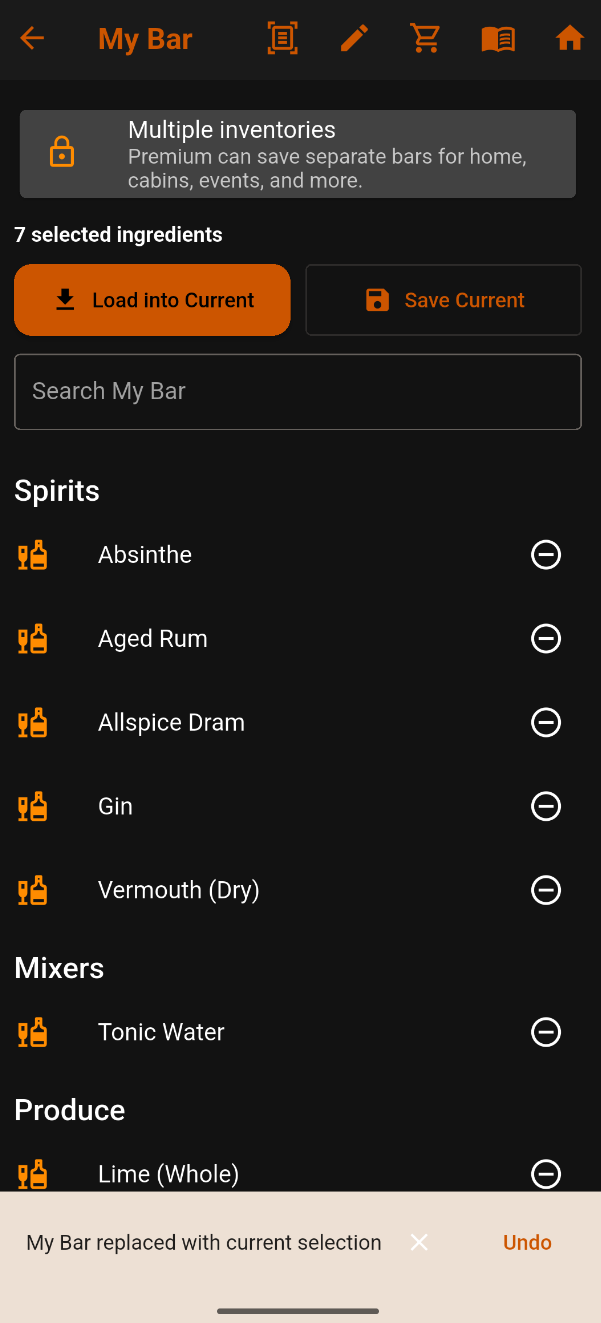
Load into Current brings your saved inventory into the current ingredient selection for finding drinks.
Save Current replaces your saved inventory with the current ingredient selection.
The message “My Bar replaced with current selection” confirms the save. Tap Undo if you replaced your inventory by mistake.
Keep your inventory useful
Keep My Bar current
Add purchases from Shopping List and remove ingredients when you run out. Load your saved bar into the current selection to discover what you can make.